Journal · Using color 03
The basics of giving each of six colors a role
Even with a six-color palette in hand, it can be hard to know what goes where. The trick is to sort the colors by role, not by which ones you like best. Once the roles are set, the same six colors can make both a light page and a dark one.
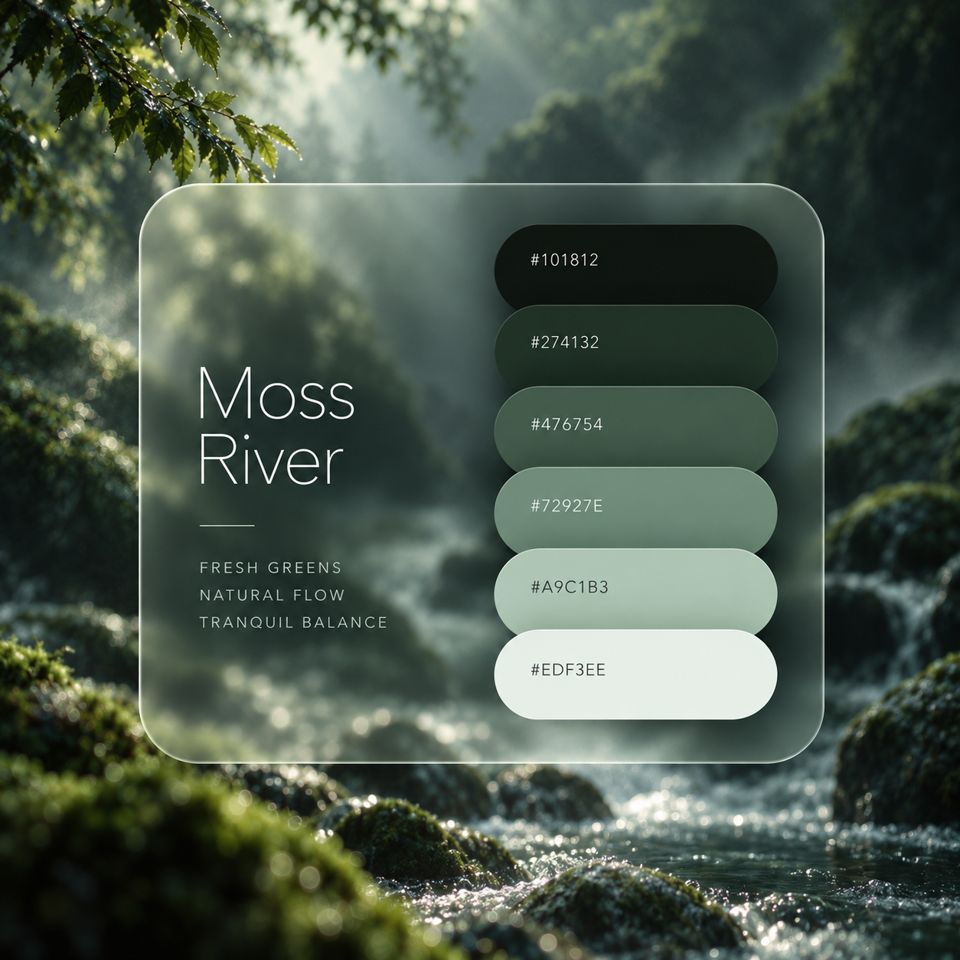
Six roles
On a website or app screen, color does six main jobs. COLOR JOURNEY palettes run from the darkest color to the lightest, which makes it easy to assign the roles.
Making a light page
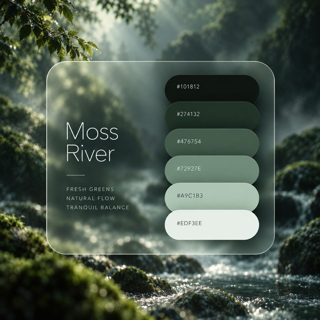
With the lightest color, #EDF3EE, as the background, it looks like this.
MOSS RIVER
Between the mossy stones.
A mountain stream flows quietly on.
The text uses the darkest color, #101812, at a comfortable 16.1:1 against the background. Even the lighter #476754 for secondary text reaches 5.6:1 and meets the guideline for body text.
Making a dark page
Now take the same six colors and use the darkest, #101812, as the background. All you do is swap the roles to the other end.
MOSS RIVER
Between the mossy stones.
A mountain stream flows quietly on.
The light page and the dark page feel completely different, yet they use the same six colors. If you think in roles, one palette can give you a daytime site and a nighttime site, or a light mode and a dark mode.
Try it with a key color
On every palette page on COLOR JOURNEY, tap any of the six colors and it becomes the background, with roles assigned to the other five automatically. You can see the role split you just read about across the whole page.
Try it
Open the Moss River page and tap the six colors one by one. The background, text and button colors switch to match their roles.
Contrast ratios are calculated with the WCAG 2.2 formula. Reference: W3C